BeyondWalls User Guide
Everything you need to know about using BeyondWalls with your family
Welcome to BeyondWalls! This guide will help you make the most of our platform as you support your child's learning journey. Each section below explains a key feature and how to use it effectively.
Quick Navigation
How to Use Your Child's Calendar
The calendar helps you plan and track your child's daily life — from chores and lessons to creative and outdoor projects. You can easily add, edit, move, and duplicate activities anytime.
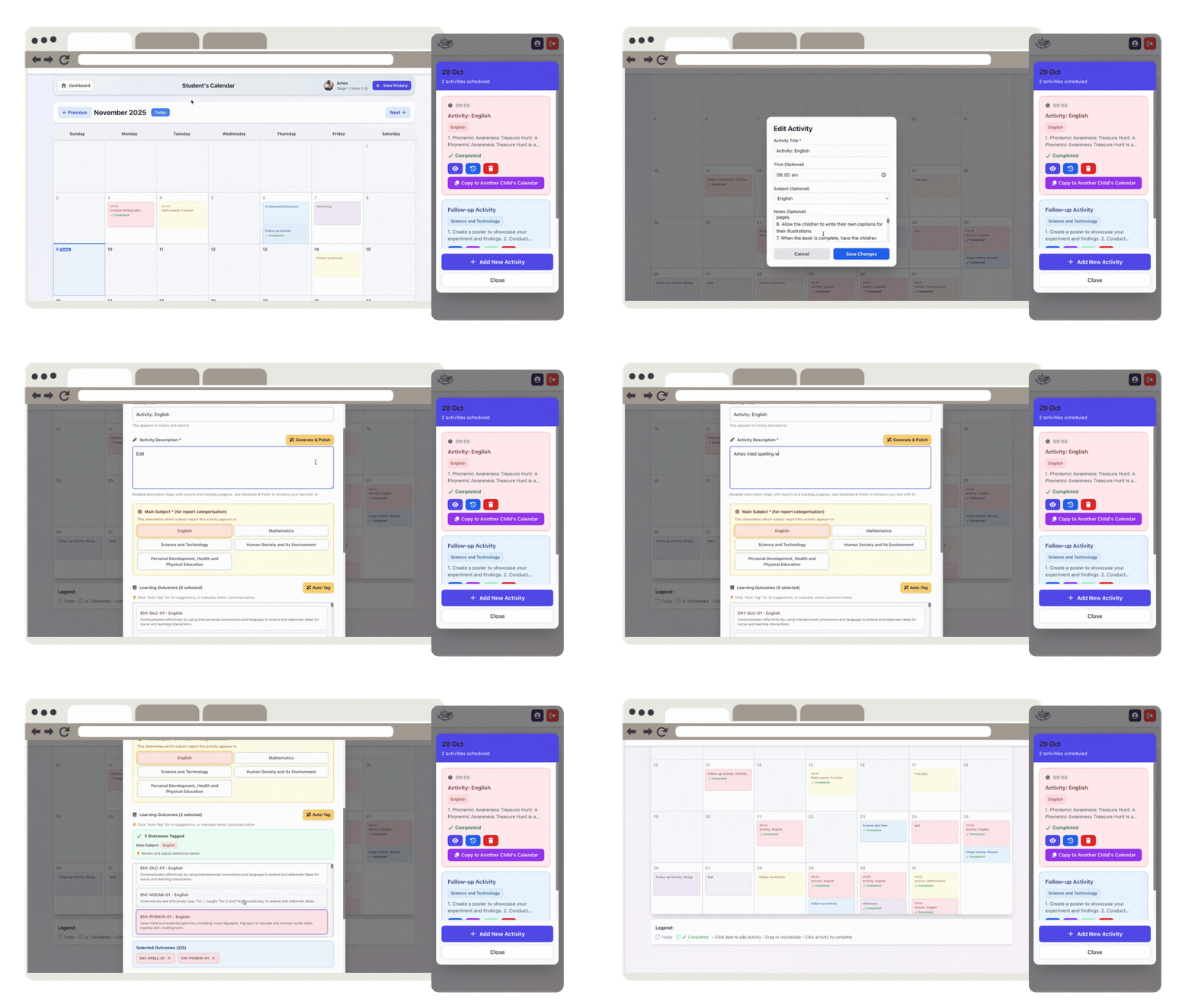
Add an Activity
- Go to your child's Calendar tab.
- Tap Add Activity.
- Enter the title, time, and details of the activity.
- Choose if it's a daily, weekly, or monthly activity.
- Tap Save. The activity will now appear on your child's calendar.
Edit an Activity
- Tap the activity you want to update.
- Select Edit.
- Make your changes (for example, update the time or add notes).
- Tap Save to confirm.
Duplicate an Activity
- Tap the activity you want to reuse.
- Select Duplicate.
- Adjust the date or details if needed.
- Tap Save. A copy of the activity will appear on the new date.
Move an Activity to Another Date
- Drag and drop the activity to a new date on the calendar.
- The schedule will automatically update.
Tip: This is useful when you need to move lessons or chores to another day.
Copy an Activity to Another Child
- Tap the activity you want to copy.
- Select Copy to Another Child's Calendar.
- Choose which children should receive this activity.
- Review the activity details that will be copied (title, date, time, subject, notes).
- Tap Copy to X Child/Children.
- The activity now appears on each selected child's calendar.
Edit After Copying
- Each child has their own separate copy of the activity.
- You can edit, complete, or delete each copy independently without affecting the others.
Tip: This is useful for group activities like excursions, family outings, or shared learning experiences where all children participate together.
How to Create Logs and View Activity History
You can record your child's learning moments, track progress, and see what outcomes they've achieved. Each log can include notes, photos, and automatically tagged subjects and outcomes.
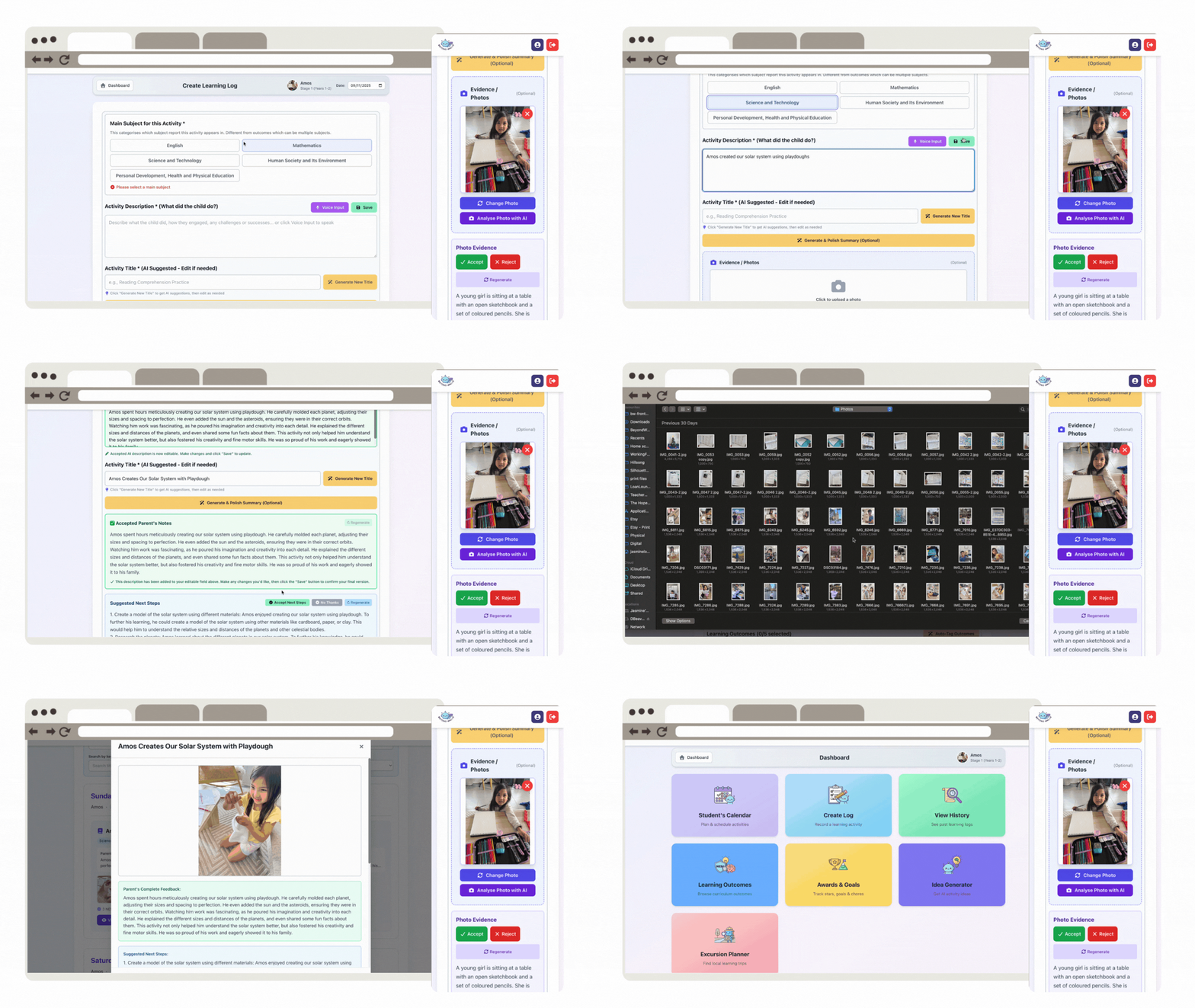
Create a Log
- Go to your child's Learning Logs section.
- Tap Add Log.
- Enter a title and short description.
- Add optional photos or videos of your child's work.
- Choose the date and subject if needed.
- Tap Save to record it.
AI-Generated Description
- After saving, tap Generate Description.
- The AI will write a short summary of the activity.
- Review or edit the text before saving again.
Auto-Tag Learning Outcomes
- When AI generates a description, outcomes are automatically tagged based on what your child learned.
- Review or adjust these tags before finalising the log.
Edit or Delete a Log
- Open the log you'd like to change.
- Tap Edit to update text, images, or tags.
- Tap Delete to remove it permanently.
View Activity History
- Go to the Activity History tab to see all saved logs.
- View them in Calendar View or List View.
- Filter by subject, date, or activity type to find specific entries.
Star Learning and Earn Rewards
- When an activity covers certain outcomes, your child earns Stars.
- Each star contributes to progress in subjects like English, Math, and Science.
- Track total stars and achievements in the Rewards section.
Edit or Delete from History
- In Calendar or List View, select a past log.
- Tap Edit or Delete to update or remove it.
How to Edit AI-Generated Descriptions and Copy Activities to Another Child
When the AI creates a description for your activity or learning log, you can make changes before saving. You can also copy the same activity to another child's profile before finalising it — making planning faster and more personal.
Edit an AI-Generated Description
- After the AI generates a description, review the text carefully.
- Tap inside the Description box to make edits.
- You can reword sentences, add personal notes, or remove parts you don't need.
- Once you're happy with your changes, tap Save.
Tip: Editing the AI description helps you keep it accurate, personal, and aligned with your child's unique learning style.
Copy an Activity to Another Child Before Saving
- Once your activity or log is ready (with the title, date, and description completed), tap Duplicate to another child.
- Select the child you want to copy the activity to.
- Review and make any small changes, such as notes or outcomes, to fit that child's progress.
- Tap Save.
The copied activity will appear in the second child's calendar or log. It will remain editable and fully customisable, so you can personalise it further without affecting the original entry.
Why This Helps
- Saves time when logging shared activities between siblings.
- Keeps learning records unique for each child.
- Ensures every activity description feels personal and accurate.
How to Use the Learning Outcomes Page
The Learning Outcomes page helps you keep track of your child's learning progress. It shows which outcomes have already been covered and which still need attention — all aligned with the NSW Department of Education curriculum.
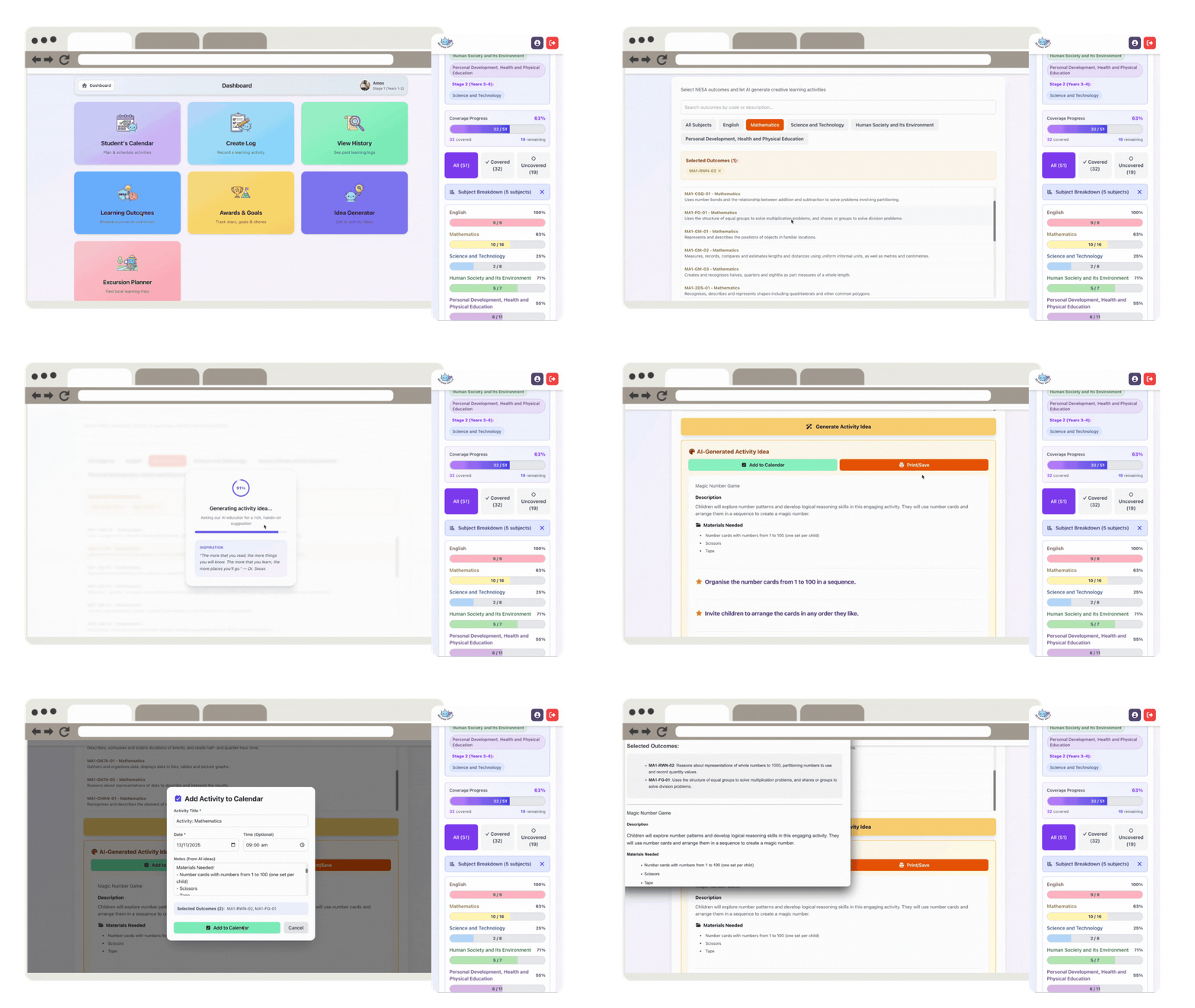
Covered and Uncovered Outcomes
- Each subject is divided into covered and uncovered outcomes.
- Covered outcomes are marked automatically once an activity or log matches them.
- Uncovered outcomes show areas that still need work, helping you plan next steps.
- Tap any outcome to view details or create a new log linked to it.
Generate Ideas Based on Outcomes
- Tap Generate Ideas next to any outcome.
- The AI will suggest creative, practical activities such as reading, outdoor play, or simple projects.
- Choose the ideas that best fit your child's interests or current topics.
AI-Generated Activity Ideas
- The AI uses each outcome's description to create age-appropriate ideas.
- You can edit or personalise these before saving.
- Suggestions can include home activities, writing prompts, experiments, or community experiences.
Add to Your Calendar
- After choosing an idea, tap Add to Calendar.
- Select the child, date, and time.
- Tap Save. The activity will now appear in your calendar for tracking or completion later.
How to Use the Learning Outcomes Page Settings
The Learning Outcomes page helps you manage how learning outcomes appear and are tracked for each child. In the Settings, you can select the right stages, subjects, and visibility preferences to match your child's learning plan.
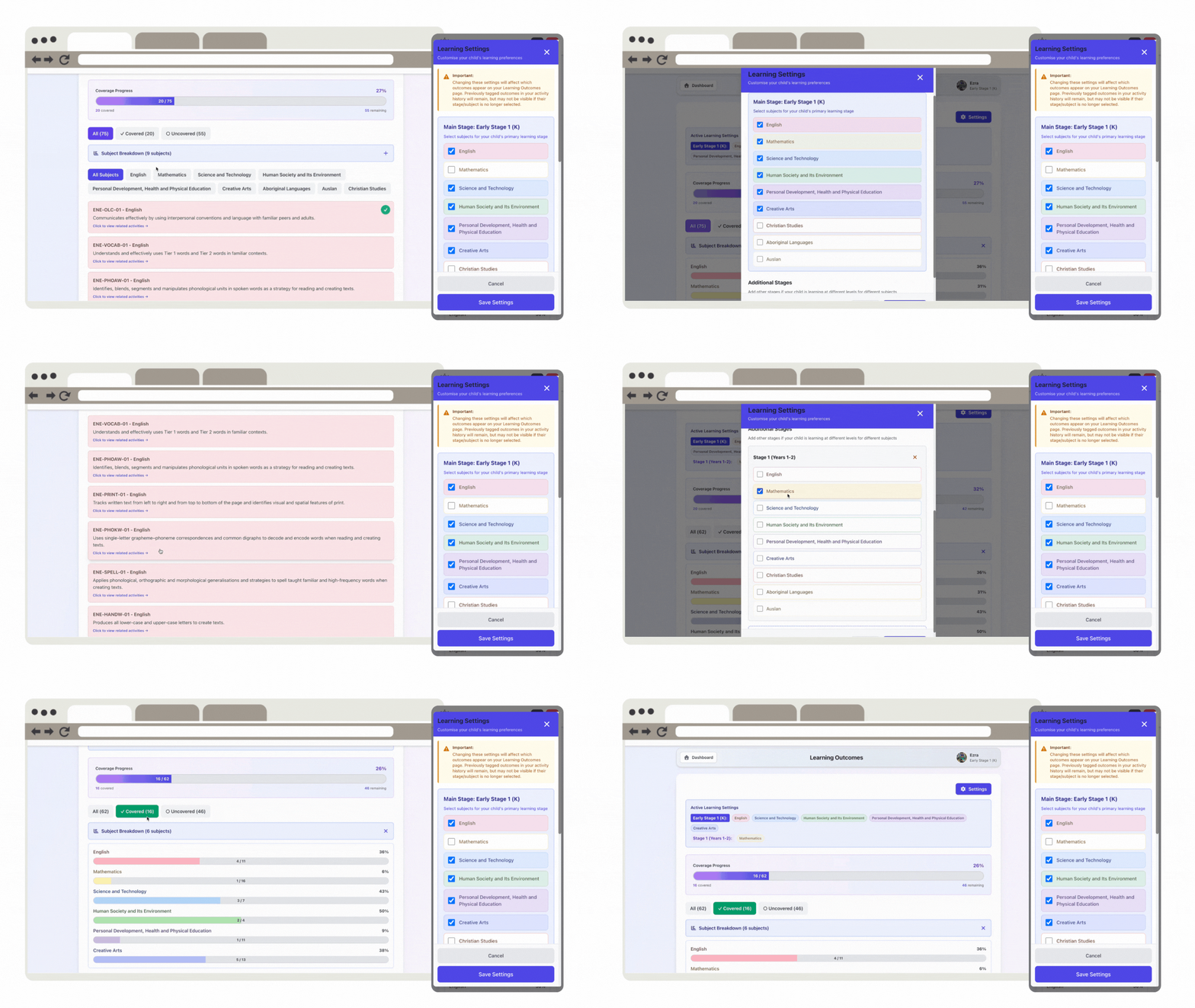
Open Learning Outcomes Settings
- Go to your child's Learning Outcomes page.
- Tap the Settings icon in the top-right corner.
- The Learning Settings window will open.
Select Stages
- Choose your child's main learning stage (for example, Stage 1, Stage 2, Stage 3).
- You can tick additional stages if your child is working ahead or revising earlier outcomes.
- When multiple stages are selected, outcomes from all chosen stages will be displayed together on the page.
Tip: Use this option if your child learns across different levels — for example, Stage 1 English but Stage 2 Science.
Choose Subjects
- Scroll through the list of subjects (English, Mathematics, Science & Technology, PDHPE, Creative Arts, HSIE, etc.).
- Tick the subjects you want to include in your child's progress tracking.
- Unticked subjects will be hidden from the main Learning Outcomes view.
Apply and Save
- After selecting the stages and subjects, tap Save Settings.
- The Learning Outcomes page will automatically update to show the chosen outcomes only.
Using the Updated Page
- You can now view covered and uncovered outcomes for the selected stages and subjects.
- Tap any outcome to generate activity ideas, add to calendar, or create a learning log.
- All AI suggestions and tags will follow the settings you've chosen for that child.
Why It's Helpful
- Keeps the page focused only on what's relevant to your child's learning level.
- Allows mixed-stage or multi-subject tracking with flexibility.
- Helps parents clearly see progress towards curriculum outcomes without extra clutter.
How to Use the Excursion Generator
The Excursion Generator helps you find real-world learning experiences that match your child's lessons and curriculum outcomes.
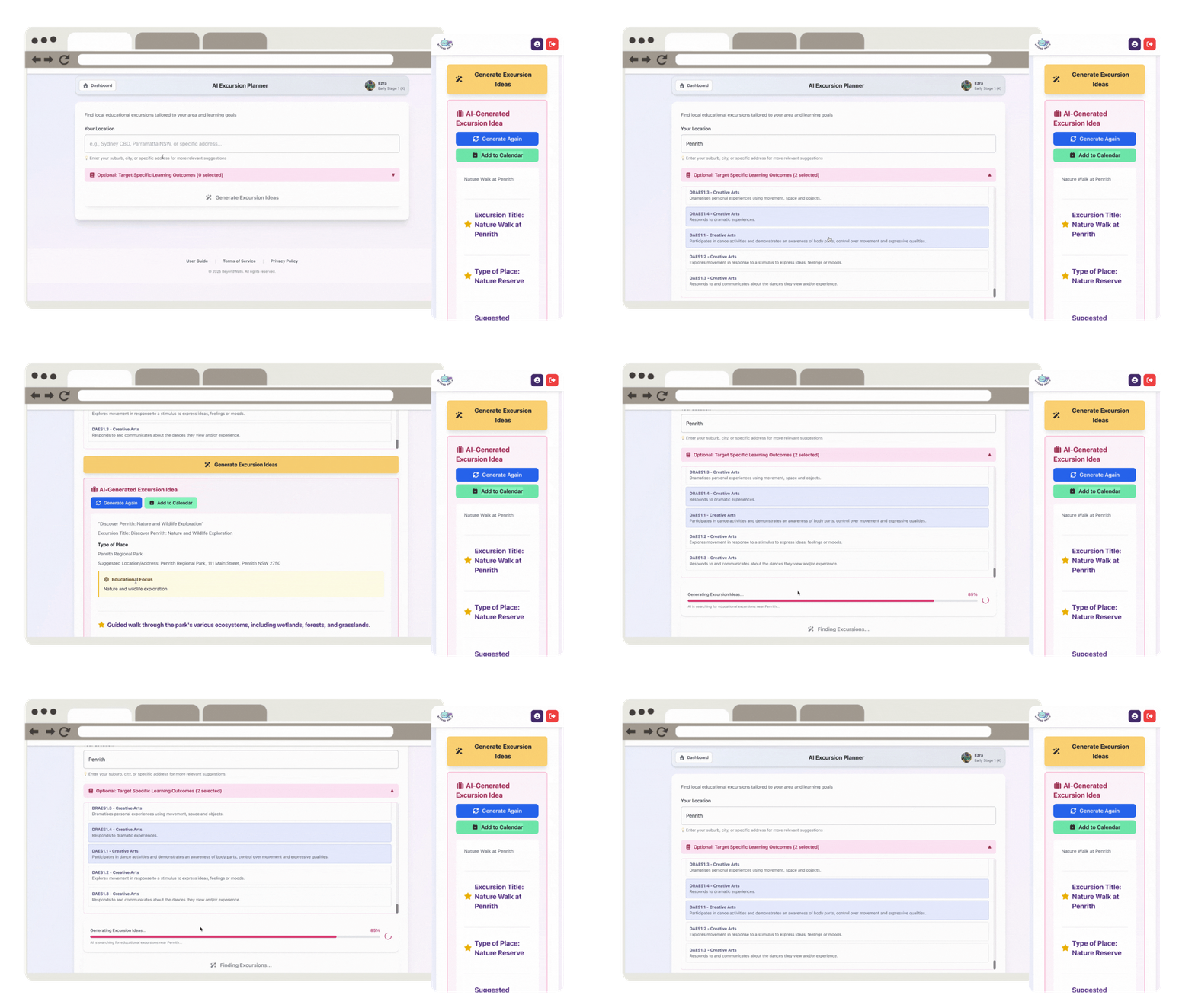
Open the Excursion Generator
- Go to the Explore or Excursions section of your dashboard.
- Choose your child and select the subject or topic you're learning about.
Generate Excursion Ideas
- Tap Generate Excursions.
- The AI will suggest nearby or theme-based excursion ideas such as parks, museums, or galleries.
- Each idea links directly to relevant learning outcomes.
View Details
- Each suggestion includes a short description, activity ideas, and the outcomes it covers.
- You can open locations in Google Maps or save notes for later.
Add to Calendar
- Tap Add to Calendar.
- Select the date, time, and child.
- Tap Save. The excursion will appear on your family calendar, ready to log once completed.
Log the Excursion
- After your trip, open the activity and tap Create Log.
- The system can auto-generate a description and tag the outcomes covered.
- You can add notes and photos to complete the record.
Edit or Delete
- Return to the calendar or excursion list at any time to edit or delete an entry.
How to Use Awards and Goals
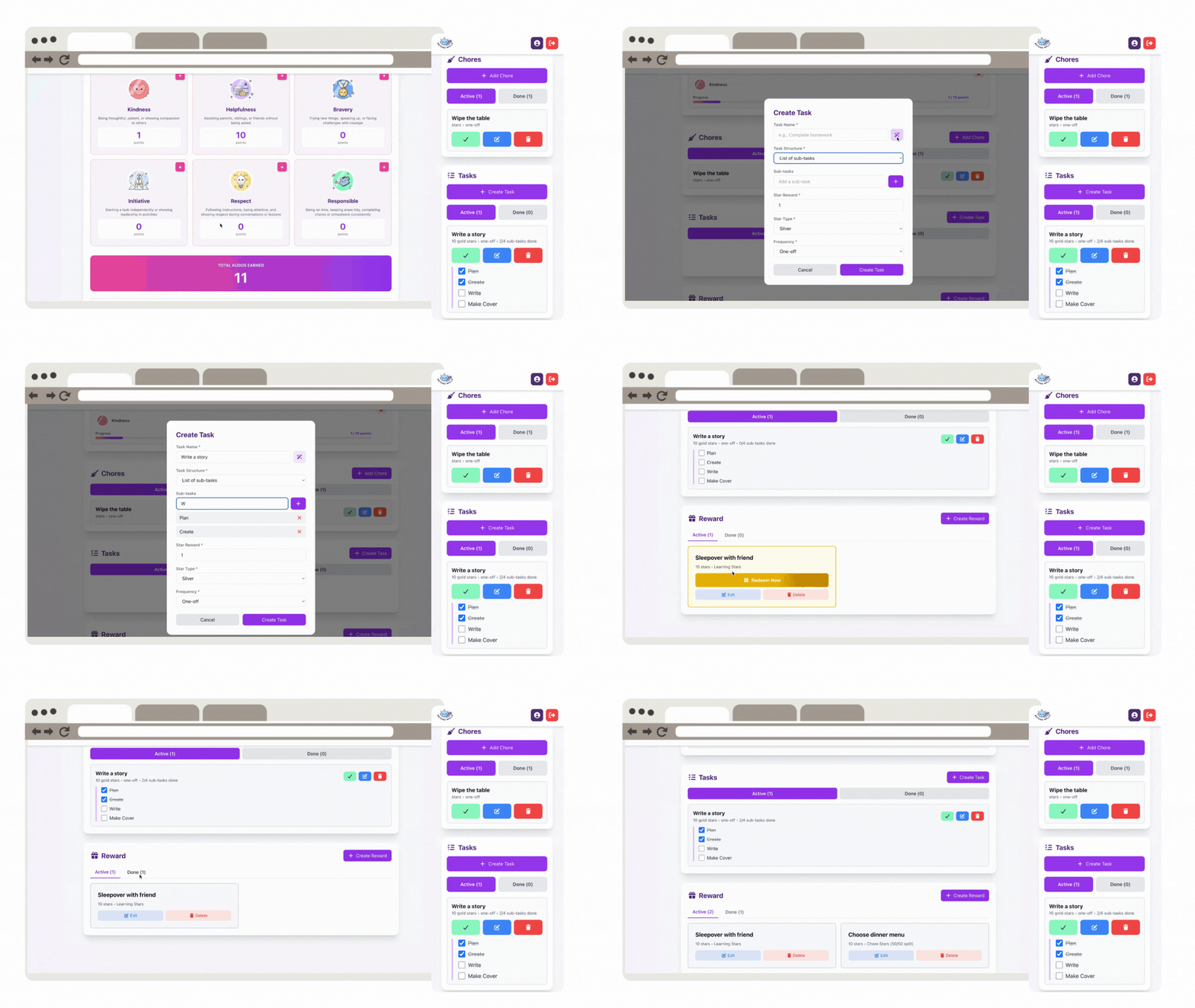
Overview
The Awards and Goals page helps you recognise your child's effort, positive habits, and achievements. It turns learning, chores, and daily actions into meaningful, trackable rewards.
Add a New Award or Goal
- Go to the Awards section.
- Tap Add Reward or Create Goal.
- Enter a name (e.g. Explorer Badge).
- Add a short description.
- Set the required Kudos points or Stars.
- Tap Save — your new goal will appear in the Active Rewards list.
Track Progress Automatically
- As your child earns Stars or Kudos badges, progress updates in real time.
- The system shows how many points remain before a reward is unlocked.
Why Use Awards and Goals
- Encourages consistent effort and motivation.
- Helps children take pride in progress, not perfection.
- Reinforces family values through daily actions.
- Makes learning and chores fun and rewarding.
How Kudos and Badges Work
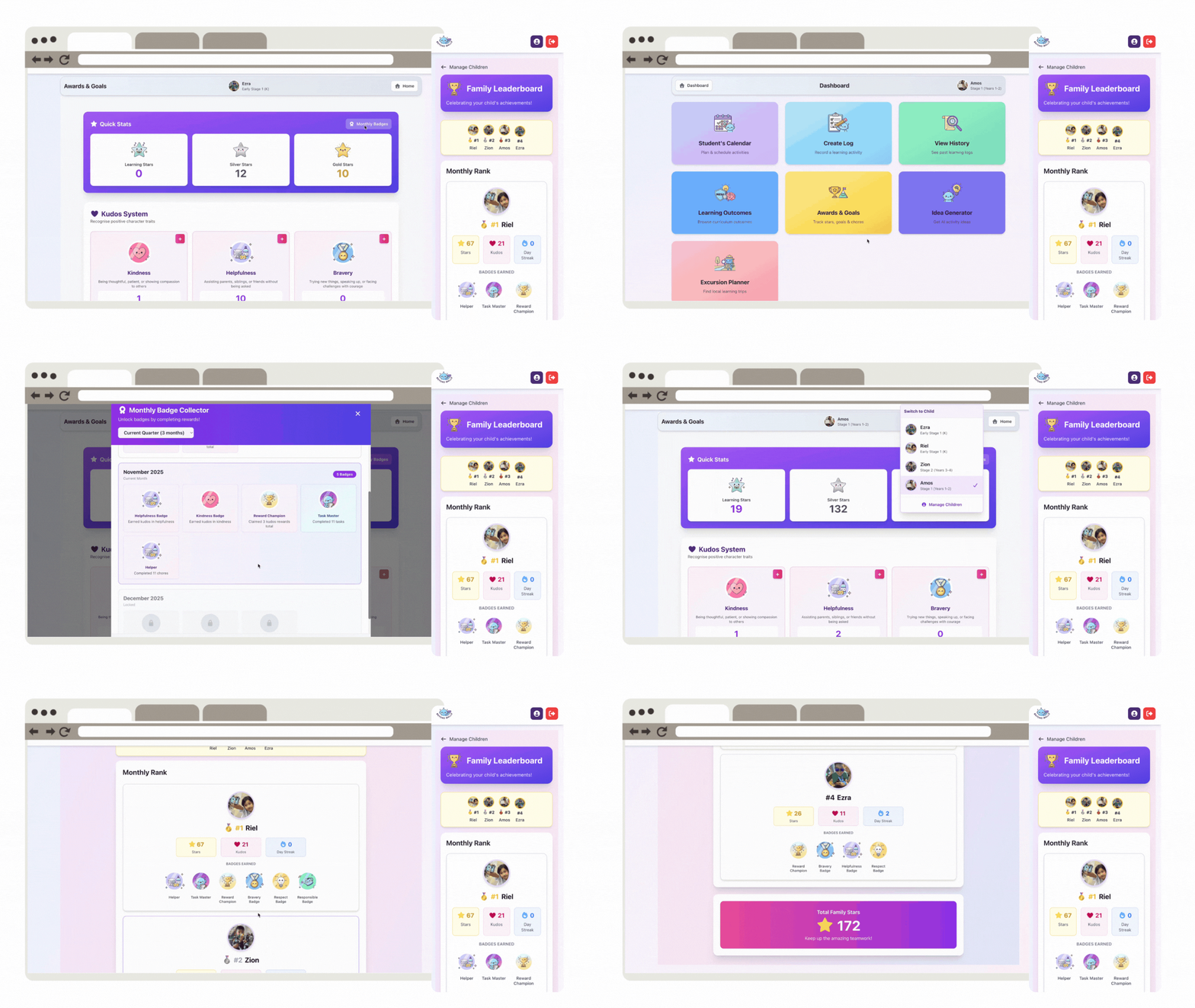
Overview
Kudos and Badges celebrate your child's character, effort, and consistency — not just their tasks. While stars track daily progress, badges recognise who your child is becoming: kind, brave, responsible, and resilient.
Kudos badges can be parent-awarded or automatically earned through the system based on milestones and streaks.
System Badges (Automatic)
These badges are awarded automatically when your child reaches milestones.
- Task Master: Completes 5+ tasks or goals in a month
- Helper: Completes 10–19 chores in a month
- Chore Champ: Completes 20+ chores in a month
- Reward Champion: Claims 3+ rewards (all-time)
- Week Warrior: Maintains a 7-day learning streak
- Month Master: Maintains a 30-day learning streak
Kudos Badges (Parent-Awarded)
Parents can award Kudos badges to celebrate positive traits:
- Kindness: Showing compassion or care
- Bravery: Trying something new or facing fears
- Initiative: Taking action without being asked
- Responsibility: Following through on duties
- Respect: Listening and showing good manners
- Helpfulness: Supporting others
Why It Matters
- Recognises both achievement and character growth.
- Promotes values-based learning instead of competition.
- Encourages children to focus on habits that shape who they are.
- Strengthens family connection through shared celebration.
Small reminders make a big difference.
Download and display these posters to keep your family focused on what truly matters — learning with heart.
📥 Download PostersNeed More Help?
If you have questions or need support, please reach out to us at support@beyondwalls.app. We're here to help you make the most of your homeschooling journey.